TRENDING ON AMAZON
Amazon Kindle Scribe E-Reader & Digital Notebook Review: Is It Worth It?
The 10.2-inch Kindle that also takes handwritten notes — a paper-feel digital notebook for readers, students and meeting note-takers.
Quick answer: The Kindle Scribe is the most genuinely useful Kindle ever made: the best e-ink reading experience plus a real handwritten-notes notebook in one device, with battery life that makes tablets look ridiculous. For serious readers, students and PDF-heavy professionals, it's the only e-reader worth this much.
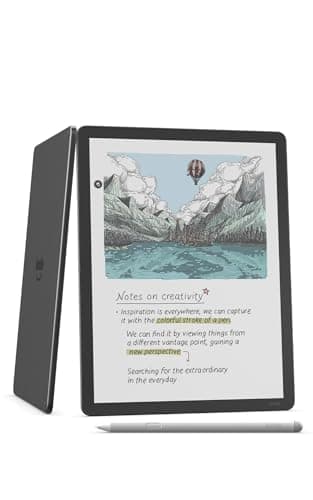
Product image from the Amazon listing.
Our verdict
The Kindle Scribe is the most genuinely useful Kindle ever made: the best e-ink reading experience plus a real handwritten-notes notebook in one device, with battery life that makes tablets look ridiculous. For serious readers, students and PDF-heavy professionals, it's the only e-reader worth this much.
The short version
The Kindle Scribe is what happens when Amazon merges the best Kindle ever with a real digital notebook. The 10.2-inch glare-free e-ink display reads like paper in any light, the included pen writes on it like a pencil on textured paper (no charging, no Bluetooth pairing), and you can mark up PDFs, take handwritten notes in their own notebooks, and read full-size books and documents without squinting. Battery lasts weeks. For students, knowledge workers and serious readers, it replaces both your tablet-for-reading and your paper notebook.
Pros & cons
Pros
- 10.2-inch glare-free e-ink reads like paper in any light
- Included pen writes naturally — no charging, no pairing
- Mark up PDFs and take notes in dedicated notebooks
- Full Kindle library access plus side-loaded PDFs
- Battery life measured in weeks, not hours
- Easier on the eyes than any tablet for long reading
Cons
- Premium price compared to standard Kindles
- No color (e-ink is black & white)
- Web browser is basic; not a tablet replacement
Why people love it
Read on the biggest Kindle ever
The 10.2-inch e-ink screen is large enough to render PDFs, textbooks and magazines at real size, with adjustable warm front-light for night reading and a battery that lasts weeks per charge.
Write with the included pen
The pen needs no charging or pairing — pick it up and write directly on the screen with realistic paper-feel friction, in dedicated notebooks or as sticky-note annotations on books and PDFs.
Sync everywhere
Email PDFs to your Kindle account or send to Kindle from your browser, then read and annotate them on the Scribe; your books, highlights and notes sync to the Kindle app on phone or tablet.
Who it's for
- Students taking handwritten notes during lectures
- Knowledge workers marking up PDFs and reports
- Serious readers who want the largest Kindle screen
- Anyone who wants 'paper notebook' feel without the paper
Kindle Scribe vs reMarkable 2 vs Boox Note Air: which e-ink writing tablet should you buy?
The three main contenders in the e-ink writing tablet category each have a distinct philosophy. The Kindle Scribe is the best all-rounder for readers: it has the entire Kindle ecosystem (your existing books, library loans via Libby, magazines), a beautiful 300ppi e-ink screen, the strongest battery life, and a free included pen. The trade-off is that the writing experience is less feature-rich than the dedicated competitors — fewer page templates, less powerful PDF markup tools, and the software updates are slower than the others.
The reMarkable 2 is the writing purist's choice: thinner, lighter, with the best paper-feel writing experience of the three and a superb organization/folder system. But it has no built-in store, weaker reading software, and a subscription is increasingly required for connectivity features. The Boox Note Air series runs Android — meaning you can install the Kindle app, Kobo app, OneNote, third-party PDF readers, and basically anything else — at the cost of a more complex setup and shorter battery life. For someone deep in the Kindle ecosystem who wants one device for reading and casual handwritten notes, the Scribe is the easy pick. For dedicated note-takers, look at reMarkable; for power users who want app flexibility, Boox.
What can you actually do with the Kindle Scribe for school or work?
For students, the Scribe replaces a paper notebook plus a textbook bag. Send your assigned PDFs to your Kindle email and they render at full size on the 10.2-inch screen — you can highlight, underline and write margin notes directly on the page, then export the annotated PDF back to your laptop. Take lecture notes in a dedicated notebook with lined or dot-grid templates, organized by course, and they survive a backpack better than a paper binder. The pen never runs out of battery before a final exam.
For knowledge work, the killer use case is PDF markup. Long reports, contracts, research papers and design specs all live on the Scribe, where you read them without screen glare and mark them up with the pen. The Send to Kindle service handles inbound files from any browser, email or mobile device, so anything you'd otherwise print can land on the Scribe instead. The honest limit is collaboration: handwritten markup is for your eyes — to share back, export the annotated PDF and email it. For solo deep reading and reviewing, it's transformative; for live shared markup, it isn't a substitute for a Word doc with tracked changes.
How to get the most out of the Kindle Scribe (pen, templates, and Send to Kindle)
First, decide between the Basic Pen and the Premium Pen. The Basic Pen is included with the entry-level Scribe and is a perfectly good stylus — battery-free, with a comfortable grip and a customizable shortcut. The Premium Pen adds a dedicated eraser at the top (turn the pen upside down to erase, like a real pencil) and a shortcut button on the side; for serious notebook use it's worth the upgrade, especially if you make lots of mistakes you want to wipe quickly. Replacement nibs are cheap and come in the box for both pens.
Spend ten minutes exploring the notebook templates and the Send to Kindle workflow. Templates range from blank pages and lined paper to dot grid, planner layouts and music staff paper — pick the right one per notebook so the structure fits the work (lined for meeting notes, dot grid for sketching, planner for daily logs). For PDFs and DOCX files, install the Send to Kindle browser extension or use the email-to-Kindle address — once the workflow is muscle memory, dragging a report into the browser and having it appear on the Scribe a minute later becomes the way you read. The Scribe is a tool that gets dramatically better once you bend it to your workflow rather than letting it sit in default mode. And for the photos, PDFs and files that never make it into the Scribe — the years of family shots and old documents scattered across phones and old drives — a physical archive like ThePhotoStick Omni is the cheap, subscription-free way to keep them safe alongside your notes.
See Kindle Scribe on Amazon
Check the latest price, photos and buyer reviews on Amazon.
Check Price on Amazon →Sold and shipped by AmazonFrequently asked questions
How is the Kindle Scribe different from a Kindle Paperwhite?
The Scribe is much larger (10.2 inches vs 6.8 inches), includes a pen for handwriting and PDF markup, and adds dedicated notebook features. The Paperwhite is a pure reader: smaller, cheaper, waterproof, designed to be held one-handed. If you only read novels, get the Paperwhite — it's lighter and a third of the price. If you read PDFs, textbooks or take handwritten notes, the Scribe is the upgrade that's worth it.
Can the Kindle Scribe replace an iPad for reading and notes?
For reading and handwritten notes, yes — and arguably better. The e-ink screen has no glare, no eye strain after hours of reading, and battery life is measured in weeks instead of a day. For video, apps, web browsing, color textbooks or anything beyond reading and writing, no — it's a focused tool, not a general-purpose tablet. Many people own both: a Scribe for deep reading and notes, an iPad for everything else.
Does the pen need to be charged?
No — that's one of the Scribe's quiet wins over the Apple Pencil or Surface Pen. The included Basic Pen has no battery and never needs charging or pairing; it just works whenever you pick it up. The optional Premium Pen adds a shortcut button and a built-in eraser at the top (rub it on the screen to erase), but also requires no charging.
What file formats does the Kindle Scribe support?
Full Kindle library (AZW, KFX) plus PDFs, EPUB, DOCX, JPEG and PNG via Amazon's Send to Kindle service (browser, email, mobile app or drag-and-drop). PDFs are the killer use case — they render at the original size on the 10.2-inch screen, and you can write directly on them with the pen. Office docs convert to Kindle format with reflowable text and editable handwriting.
Can you take real handwritten notes (like in a notebook)?
Yes — that's the headline feature. The Scribe has dedicated 'Notebook' files separate from your books: create as many as you want, choose page templates (blank, lined, dot grid, planner, etc.), and write freely with the pen. Notes can be organized into folders, exported as PDFs, and (on newer firmware) converted to typed text for searching.
How long does the Kindle Scribe battery last?
Amazon rates it at weeks of reading on a single charge, and that's accurate for typical use (an hour or two a day with Wi-Fi off). With heavy writing and Wi-Fi on, expect closer to one to two weeks. Either way it's in a completely different class than a tablet — most owners charge it about as often as their bedside lamp gets replaced, not their phone.
As an Amazon Associate, TopCrate earns from qualifying purchases at no extra cost to you. Product image, price, availability and ratings are shown on Amazon and are subject to change.