TRENDING ON AMAZON
Apple Pencil (2nd generation) Review: Is It Worth It?
Precise, low-latency writing and drawing on a compatible iPad — the accessory that finally makes the tablet feel like paper.
Quick answer: For anyone with a compatible iPad who writes, draws or marks things up, the Apple Pencil is the accessory that unlocks the tablet. Precise, low-latency, and effortless to keep charged — few peripherals feel this good.
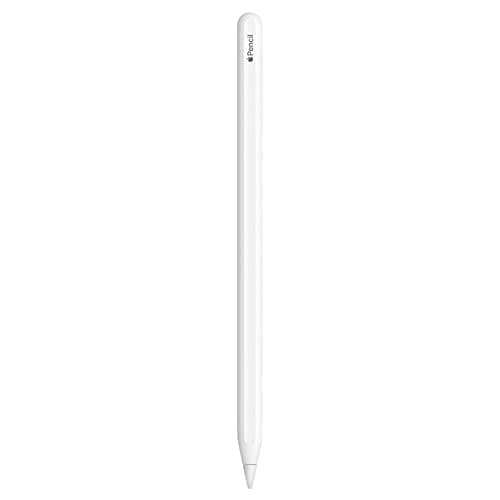
Product image from the Amazon listing.
Our verdict
For anyone with a compatible iPad who writes, draws or marks things up, the Apple Pencil is the accessory that unlocks the tablet. Precise, low-latency, and effortless to keep charged — few peripherals feel this good.
The short version
If you use a compatible iPad for notes, sketches, PDF markup or diagrams, the Apple Pencil transforms it. Pressure and tilt sensitivity feel like a real pencil, latency is barely there, and it snaps to the side of the iPad magnetically to charge and pair. Once you've used one, going back to typing feels slower.
Pros & cons
Pros
- Pressure and tilt sensitivity feel remarkably like paper
- Extremely low latency — the line follows the tip
- Magnetically attaches to the iPad's side to charge and pair
- Double-tap switches tools without stopping
- Palm rejection lets you rest your hand naturally
- One flat side keeps it from rolling off the desk
Cons
- Only works with specific iPad models — check compatibility
- Not the cheapest stylus if you rarely draw or take notes
- The tip wears down over heavy use and needs an occasional replacement
Why people love it
Magnetically pair
Snap it to the flat side of a compatible iPad and it charges and pairs automatically.
Write and draw
Pressure, tilt and low latency make handwriting, sketching and PDF markup feel like paper.
Switch tools with a tap
Double-tap near the tip in supported apps to jump between the pencil and eraser without lifting your hand.
Who it's for
- Students taking handwritten notes
- Illustrators and designers on iPad
- Anyone marking up PDFs or signing documents
- People who prefer handwriting to typing
Is the Apple Pencil worth it for note-taking and PDF markup?
If your iPad already lives in your bag for class, meetings or reading, the Pencil is the accessory that changes how you use it. Apps like Notability, GoodNotes and Notes handle handwritten text with pressure and tilt that genuinely feel like paper, and palm rejection means you can rest your hand on the screen the way you would on a notepad. Marking up PDFs — contracts, research papers, homework — becomes a single-tool experience: highlight, annotate, sign and save without printing anything. For students in particular, one Pencil often replaces a stack of notebooks.
Where the Pencil is less obviously worth it: pure text-heavy work. If your notes are mostly typed sentences, a keyboard is faster and searchable text is easier to review than handwriting. The Pencil earns its keep when the content is diagrammatic, mathematical, sketched or marked up — anything typing can't easily represent. Handwriting-to-text conversion via Scribble is impressive but still works better as an assist than a replacement for a real keyboard for long documents.
Apple Pencil vs Logitech Crayon vs cheaper third-party styluses
The main alternatives are the Logitech Crayon and various third-party 'active' styluses. The Logitech Crayon is the strongest budget pick: tilt sensitivity, palm rejection and USB-C charging at a lower price, and it works with the same iPads. It skips pressure sensitivity and the elegant magnetic side-charging, but for classroom note-taking it's excellent and often the school-approved option. Third-party styluses from brands like Adonit or Zagg vary — cheaper models add drift, higher latency and occasional connection drops.
The Apple Pencil earns its premium in three specific ways: near-zero latency that makes drawing feel natural, real pressure sensitivity for shading and brush strokes, and the magnetic side attach that means you never lose it and rarely have to think about charging. For casual note-takers, the Crayon is genuinely enough. For anyone drawing, illustrating or doing detailed markup, the Apple Pencil is still the tool to beat and worth the difference.
How to get the most out of your Apple Pencil
Start with the built-in gestures. Double-tap near the tip flips between your current tool and the eraser in Notes, Notability and Procreate — using it becomes muscle memory within a day. In Scribble, hand-write into any text field and iPadOS converts it to typed text; the trick is writing normally rather than trying to print carefully. Enable Squeeze or the Pencil menu in Settings to summon a floating tool palette anywhere on the screen without hunting through menus.
For serious illustration or note-taking, invest in the small extras. A matte Paperlike screen protector replicates the friction of paper and quiets the tip's glassy sound; keep a couple of spare tips on hand because the tip wears down faster with the extra grip. In Procreate, learn the basic brush pressure curve — adjusting it slightly to your natural hand pressure transforms line quality. And keep the Pencil magnetically parked on the iPad's side rather than tossed loose in a bag; that habit alone eliminates the two biggest complaints — dead battery and lost Pencil.
See Apple Pencil on Amazon
Check the latest price, photos and buyer reviews on Amazon.
Check Price on Amazon →Sold and shipped by AmazonFrequently asked questions
Which iPads is the 2nd-gen Apple Pencil compatible with?
It works with recent iPad Pro models and specific iPad Air and iPad mini generations. Always check Apple's compatibility list for your exact iPad model before buying.
How does it charge?
It attaches magnetically to the side of a compatible iPad and charges wirelessly. Charge time is fast — a few minutes usually gets you back to a full workday.
Does it feel like a real pencil?
Very close. Pressure sensitivity varies the line weight, tilt shades like the side of a pencil, and latency is short enough that the line seems to appear at the tip.
Do I need a paper-feel screen protector?
You don't need one, but many people love the extra texture. A matte film like the Paperlike screen protector adds a subtle drag that feels more like paper under the Pencil, especially for long note-taking sessions.
Apple Pencil vs Apple Pencil USB-C vs Pencil Pro: what's the difference?
The 2nd-gen Pencil offers pressure sensitivity, tilt, wireless charging on the side of the iPad and the double-tap gesture. The cheaper USB-C Pencil is simpler — tilt but no pressure, and no wireless charge or double-tap. The newer Pencil Pro adds squeeze, barrel roll and haptic feedback but only on the very latest iPad models. For most people on a compatible iPad, the 2nd-gen Pencil hits the sweet spot of features and price.
Can the tips be replaced when they wear out?
Yes. Apple sells replacement tips that unscrew and pop on. Heavy users on paper-feel screen protectors go through tips faster, so buying a small pack up front is smart.
As an Amazon Associate, TopCrate earns from qualifying purchases at no extra cost to you. Product image, price, availability and ratings are shown on Amazon and are subject to change.