HOW TO
How to Back Up iPhone Photos Without iCloud: 4 Ways, From Free to ThePhotoStick Omni (2026)
You can back up iPhone photos without iCloud by copying them to a computer over a cable, saving them to a USB drive through the Files app, using another cloud service such as Google Photos, or using a one-click backup stick like ThePhotoStick Omni. Here is how each method works, what it costs, and where the free options win.
To back up iPhone photos without iCloud, copy them to a Mac or Windows PC with a USB cable, save them to a USB drive through the Files app, upload them to another cloud service such as Google Photos, or use a backup stick like ThePhotoStick Omni that copies them for you. The computer route is free if you already own a computer, and it is the method Apple itself documents. The other three trade a little money or a little setup for convenience.
This guide walks through all four, with the steps taken from Apple's and Google's own help pages and from ThePhotoStick's official guides, all checked on November 11, 2026. We also cover why iCloud runs out in the first place, and a simple routine that keeps more than one copy of your photos. If you are already leaning toward a stick, our ThePhotoStick Omni review covers whether it is worth the money.
Why people look for an iPhone photo backup without iCloud
Every Apple Account comes with 5 GB of free iCloud storage, according to Apple's iCloud+ pricing page. That 5 GB covers your device backups and other iCloud data as well as photos, so a few years of pictures and videos can fill it. Apple's paid iCloud+ plans in the US were $0.99 a month for 50 GB, $2.99 for 200 GB, $9.99 for 2 TB, $29.99 for 6 TB and $59.99 for 12 TB.
When the space runs out, Apple's storage help page says new photos and videos won't upload to iCloud Photos, and iCloud device backups stop too. That is the moment many people discover their newest photos are no longer backed up anywhere. Some want a cheaper option than a monthly plan. Others just want a copy they can hold, one that does not depend on an account login.
None of this means iCloud is a bad choice. It syncs automatically, works in the background and lets you see your library on every Apple device. If you are happy to pay a few dollars a month, it is the least effort. The methods below are for when you would rather not, or when you want a second copy outside iCloud.
Method 1: Back up iPhone photos to a Mac or PC with a cable (free)
This is Apple's own method, from its support article "Transfer photos and videos from your iPhone or iPad to your Mac or PC." On a Mac, connect the iPhone with a USB cable and click Allow if asked. Open the Photos app. The Import screen appears, or you can click the iPhone's name in the sidebar. Unlock the phone, and if it asks whether to Trust This Computer, tap Trust. Choose an album or create a new one, then click Import Selected or Import All New Items, and wait for the import to finish before you unplug.
On a Windows PC, Apple says to install the Apple Devices app from the Microsoft Store, connect the iPhone by cable, unlock it and tap Trust or Allow. You then import the photos with the Microsoft Photos app, following Microsoft's instructions. Apple's article also suggests a setting if you move photos to a PC often: Settings > Camera > Formats > Most Compatible, which makes the camera save JPEG and H.264 files that Windows handles easily.
One catch from the same article: if you use iCloud Photos, you need to download the original, full-resolution photos to the iPhone before you import them to a PC. Where this method wins is cost and capacity. It's free, and your computer's drive is usually much bigger than a phone's. Where it falls short is that it needs a computer, a little comfort with the import screens, and the habit of doing it again. Also, the photos then live on one computer, so you still want a second copy somewhere.
Method 2: Save iPhone photos to a USB drive with the Files app
Apple's iPhone User Guide says you can use the Files app to reach files on external storage connected to your iPhone, such as USB drives and SD cards. Answers in Apple's Community forum describe the usual steps: in the Photos app, tap Select, choose your photos, tap the Share button, choose Save to Files, then pick the drive under Locations and tap Save. Community answers also note that a drive formatted for Windows only (NTFS) usually won't appear, while exFAT and FAT32 drives do.
You need a drive or adapter that fits your phone: Lightning on older iPhones, USB-C on the iPhone 15 and later. If you already own one, this method costs nothing extra, and you can choose exactly which photos to copy.
The downside is that it's manual. You pick the photos each time, and nothing tracks what you copied last time, so it is easy to save duplicates or miss a month. For a few hundred photos it works well. For a library of tens of thousands, most people give up partway through, which is the gap one-click backup sticks are built to fill.
Method 3: Use Google Photos or another cloud service
If you like automatic cloud backup but not iCloud's free tier, Google Photos is the common alternative. Google's help center says every Google account comes with up to 15 GB of free storage, shared across Gmail, Google Drive and Google Photos. Original-quality photos count toward that space, and so do Storage saver uploads made after June 1, 2021. You install the Google Photos app, sign in and turn on backup.
15 GB is three times iCloud's free 5 GB, but it is shared with your email and Drive files, so a large library will still outgrow it and push you toward a paid Google One plan. Dropbox and OneDrive also offer photo upload from the iPhone.
Where cloud backup wins: it runs on its own, it is off-site (a fire or burglary at home will not take it), and you can reach your photos from any device. Where it loses: it keeps charging once you outgrow the free tier, and your photos sit behind an account you have to keep paying for and keep access to. That is why many people pair a cloud service with a copy they own.
Method 4: A one-click backup stick like ThePhotoStick Omni
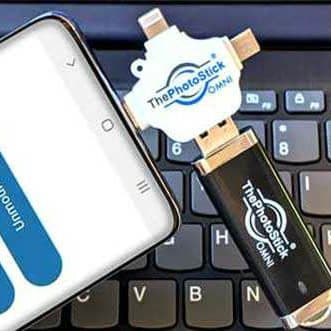
ThePhotoStick Omni is a USB backup drive with its own app that searches the phone for photos and videos and copies them to the stick. On an iPhone, ThePhotoStick's official guide has you install the free ThePhotoStick Omni app from the App Store (iOS 13 or later), plug the stick into the Lightning or USB-C port, tap CONNECT, choose the PHOTOSTICK drive, and tap BACK UP FILES NOW. Allow Full Access when iOS asks, so the app can see your whole library. Our step-by-step guide on how to use ThePhotoStick Omni covers every screen.
ThePhotoStick's FAQ says the software backs up files without ever deleting them from your device. With Skip Duplicates on, it saves just one copy of each file, so later backups only add what is new. The offer page says it also works with Android phones, tablets, and Windows and Mac computers, so one stick can hold the family's photos from several devices.
On the official offer page on November 11, 2026, the checkout data listed four sizes: 32GB for $69.99, 64GB for $89.99, 128GB for $109.99 and 256GB for $149.99, each shown against a higher list price. The 32GB size carried a $7.99 shipping charge and the larger sizes showed none. The page offers a 30-day money-back guarantee. ThePhotoStick's FAQ says that runs 30 days from delivery, the buyer pays return postage, and shipping, handling and taxes are not refunded.
Where it wins: no subscription, no computer needed, and a copy you own that works for people who would never use an import screen. Where it loses: it costs more up front than any free method, the capacity is fixed, and it is not a live sync. It copies what is on the phone when you run it, so you have to remember to plug it in. A disclosure: TopCrate earns a commission if you buy ThePhotoStick Omni through our link. We earn nothing on the free methods above, and we'd rather you use one of them than nothing at all.
ThePhotoStick Omni vs ThePhotoStick, ThePhotoStick Mobile and generic photo sticks
Search for "photo stick" and you will see several products with similar names. ThePhotoStick sells three: the Omni, which works with phones and computers; the original ThePhotoStick, which is for computers only; and ThePhotoStick Mobile, which is for phones only. They come from the same company but are different products. If your problem is only a full iPhone, the Mobile is the narrower option, and the original stick cannot plug into a phone at all.
You will also see generic "photo stick" drives and unbranded flash drives on marketplaces. These may not include ThePhotoStick's app or come with its 30-day guarantee. Flash storage also has a well-known counterfeit problem, with drives that report more capacity than they really hold. Our guide on where to buy ThePhotoStick Omni explains which seller backs the guarantee. If you would rather use a mainstream storage brand, our ThePhotoStick Omni vs SanDisk iXpand comparison covers that option.
Which way to back up iPhone photos should you choose?
If you have a Mac or PC and don't mind ten minutes with a cable, Method 1 is the best value: it's free, it's Apple's own process, and your computer probably has room for years of photos. If you have a USB drive and only want to save a few albums, Method 2 does it with no extra cost. If you want backups to happen without thinking, a cloud service is the most hands-off, as long as you accept the monthly bill once the free space runs out.
A one-click stick like ThePhotoStick Omni makes the most sense for people the other methods don't suit: those without a computer, those who find import screens confusing, or a parent or grandparent you want to give a backup they will actually use. It is also an easy second copy alongside a cloud service.
Whatever you pick, keep more than one copy. A phone plus one backup is better than a phone alone. A phone, a physical copy and a cloud copy, with one of them kept away from home, means no single loss, theft or house fire takes everything. Repeat the backup on a schedule. Once a month, and after any big trip or event, is a habit most people can keep.
Read our full ThePhotoStick Omni review
Want a one-click iPhone photo backup with no subscription? Our review covers how the Omni works, the four sizes from $69.99, and how its 30-day guarantee works.
Read our full ThePhotoStick Omni review →Frequently asked questions
Can I back up my iPhone photos without iCloud?
Yes. Apple documents importing them to a Mac with the Photos app or to a Windows PC with the Apple Devices app and the Microsoft Photos app, over a USB cable. You can also save them to a USB drive through the Files app, use another cloud service such as Google Photos, or use a backup stick such as ThePhotoStick Omni.
What is the cheapest way to back up iPhone photos without iCloud?
Copying them to a computer you already own with a USB cable. It is free, and a computer drive is usually much bigger than iCloud's free 5 GB or Google's free 15 GB, which is shared with Gmail and Drive. Keep a second copy somewhere else too, because a single computer can fail.
What happens when my iCloud storage is full?
Apple says new photos and videos won't upload to iCloud Photos, and iCloud device backups stop. You can buy more space (US iCloud+ plans started at $0.99 a month for 50 GB when we checked), delete data, or move your photos to another backup such as a computer or a drive.
Does ThePhotoStick Omni work on iPhone without iCloud?
Yes. It copies photos from the iPhone straight to the stick through the free ThePhotoStick Omni app (iOS 13 or later, Lightning or USB-C), with no iCloud account needed. ThePhotoStick's FAQ says it never deletes files from your device. Our ThePhotoStick Omni review covers the sizes and prices.
Can I back up iPhone photos to a flash drive without a computer?
Yes. Apple's iPhone User Guide says the Files app can access USB drives connected to the iPhone, and you can save selected photos there with Share > Save to Files. A backup stick like ThePhotoStick Omni does the same job automatically through its app, and skips photos it has already saved.
Is ThePhotoStick Omni the same as ThePhotoStick Mobile?
No. They are different models from the same company. ThePhotoStick Mobile is for phones only, the original ThePhotoStick is for computers only, and ThePhotoStick Omni works with both phones and computers. Generic "photo stick" drives on marketplaces are separate products, and ThePhotoStick's 30-day guarantee does not cover them.
TopCrate is reader-supported. When you buy through links on our site we may earn an affiliate commission, at no extra cost to you. Content is for general information and isn't a substitute for professional advice.